How to run efficient Facebook ads with campaign objectives and detailed targeting
Hello. We're ONDA, the B2B platform digitizing the hospitality industry.
Today, we're covering how to promote your pension to more people.
If you've felt stuck wondering which channel to advertise on and how to do it, pay close attention to this post.
Looking at domestic SNS usage data, Facebook and Instagram both rank in the top three across ages 10–50. With data like this, Facebook and Instagram seem like solid channels to reach a wide audience for your pension.
Once you've picked your marketing channel, you might be wondering:
"What's the difference between Facebook ads and OTA app ads?"
"I'm already running app ads — do I really need Facebook ads too?"
The biggest difference between OTA/app ads and Facebook ads is control over your ad budget. OTAs and app banner ads have minimum spend and duration requirements. Facebook? You can start with as little as $1.
You can also adjust the ad period to fit your situation. If your ads are performing well, you can increase your budget or extend the duration without hassle.
The key advantage: you control the spend, not the OTA or app. You can adjust your budget freely based on your needs.
Now, ONDA will walk you through Facebook ads from A to Z. Stay with us!
Can't I just use 'Boost Post'?
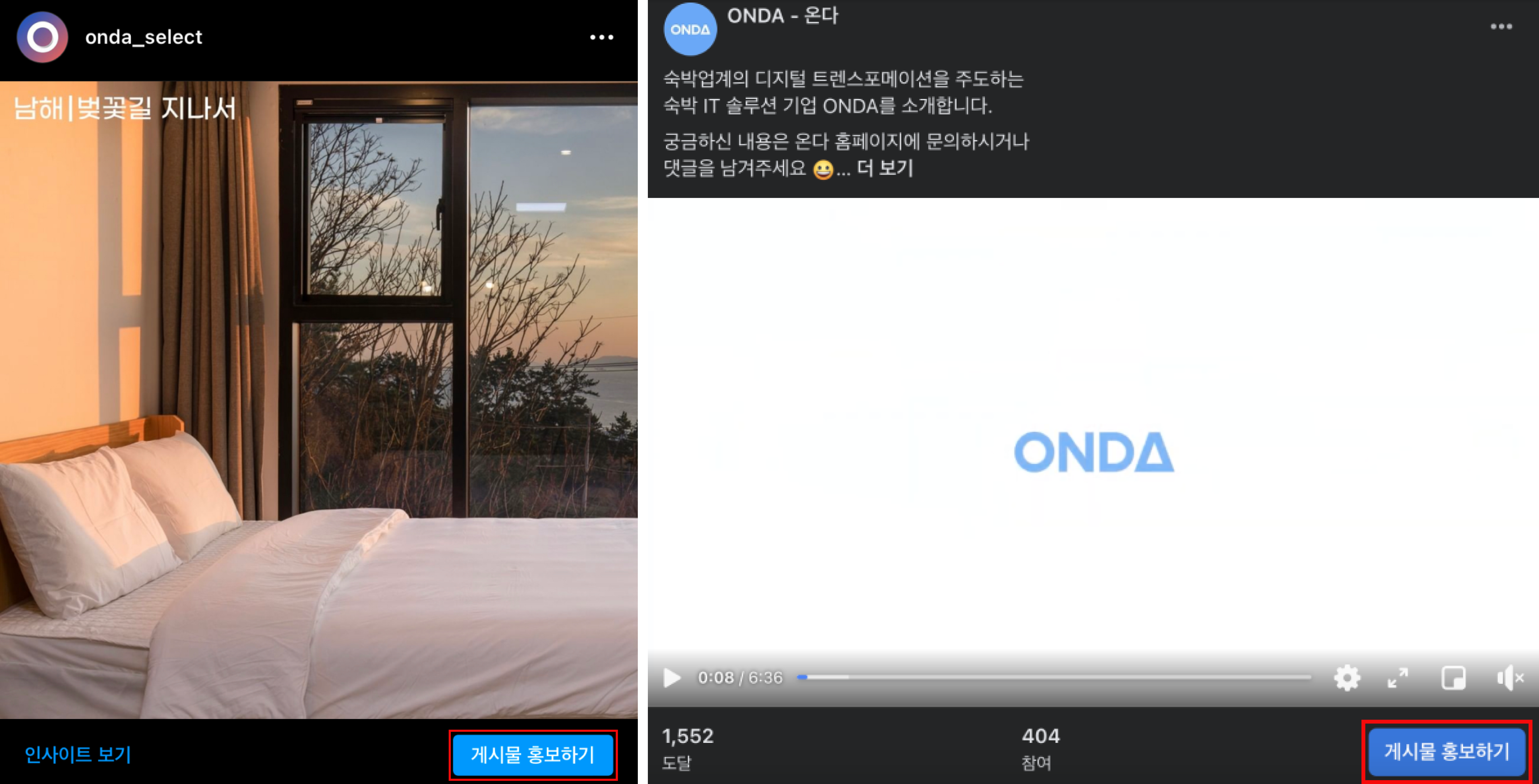
If you manage a Facebook or Instagram account for your business, you've probably seen the blue 'Boost Post' button under your posts. It looks like an easy way to run an ad with just one click.
We don't recommend it.
Unlike ads set up through Facebook Ads Manager, boosted posts lack detailed controls for campaign objectives and targeting — making it hard to drive meaningful results.
That's why today we're teaching you how to set up ads in Facebook Ads Manager.
Accessing Facebook Ads Manager
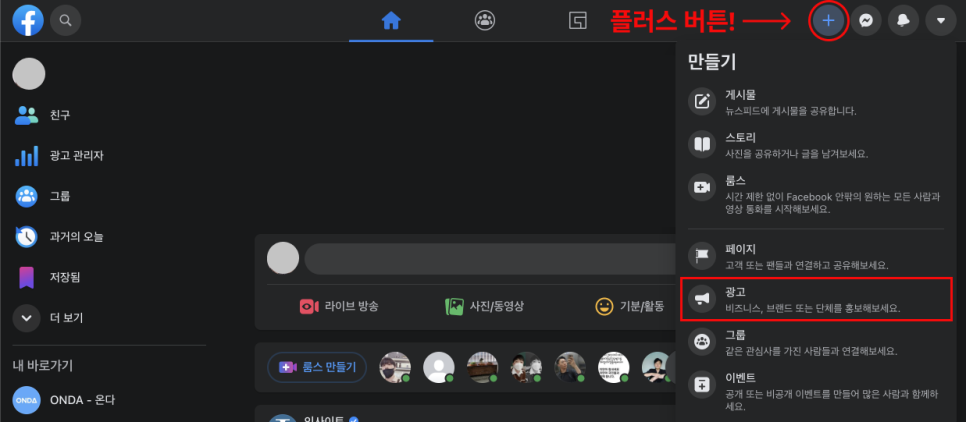
Log into Facebook and look at the top right. You'll see a '+' button. Click it, then select 'Ad' (third from the bottom). What you see next depends on whether you've run ads before. We'll assume this is your first time.
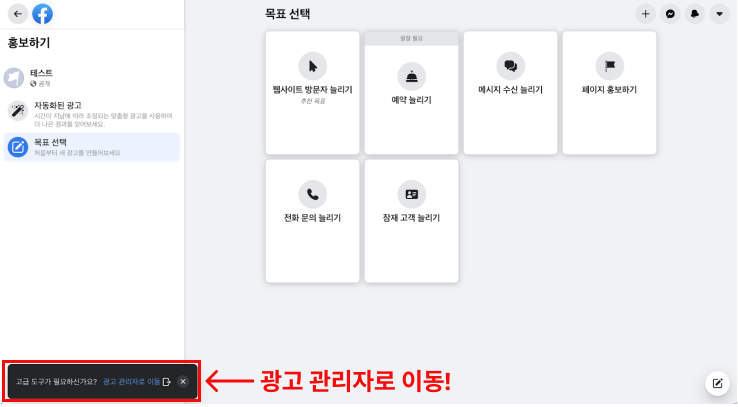
After clicking 'Ad', you'll see a screen like this. Click the 'Go to Ads Manager' button at the bottom left.
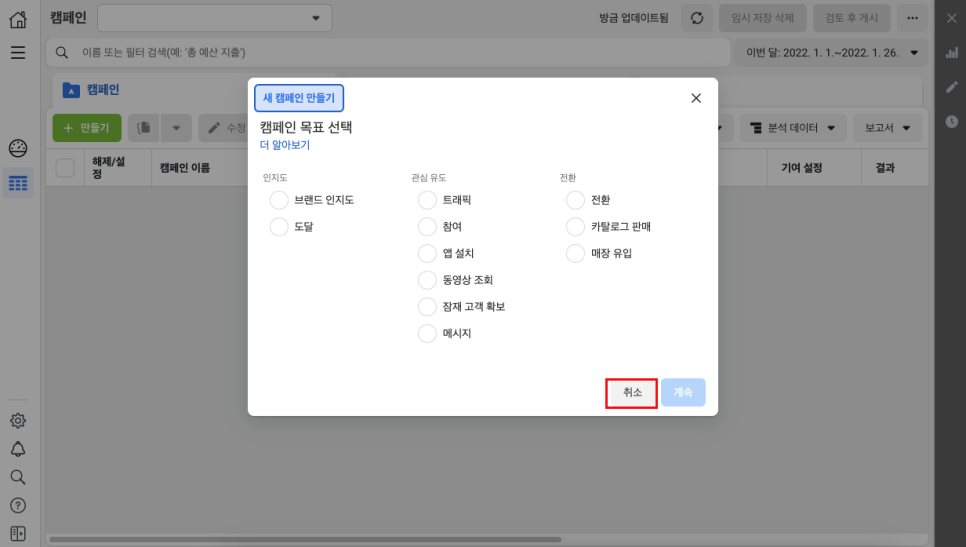
You'll land on a page like this. If you've run ads before, you'd have arrived here directly after clicking 'Ad' in the previous step.
First, let's explain the Facebook ad structure. Click 'Cancel' to close the pop-up.
Facebook Ad Structure: Three Levels
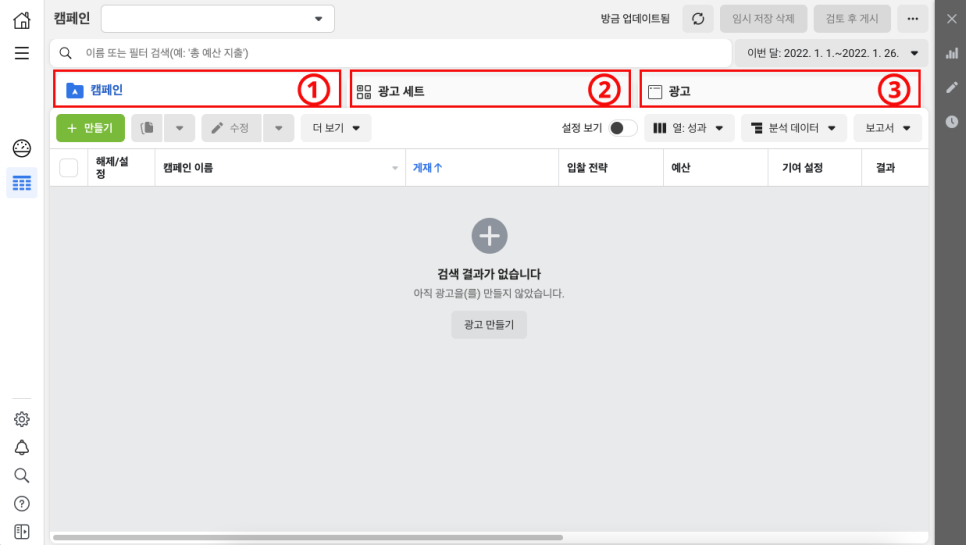
You'll see three levels: Campaign, Ad Set, and Ad. This is how you build and analyze ad performance — across these three units.
It might seem complex, but let's break it down:
1) Campaign Setup
Campaign is the top-level unit in Facebook ads. It's where you define your objective. What you choose as your campaign objective can drastically change performance — even with the same creative and targeting.
2) Ad Set Setup
This is where you set the schedule, budget, audience, and placements for your ads.
3) Ad Setup
This is where you choose your creative — upload images or videos and write your copy, headline, etc.
Campaign is the broadest unit, with multiple ad sets inside it, and multiple ads inside each ad set.
Facebook Ad Setup #1. Campaign Setup
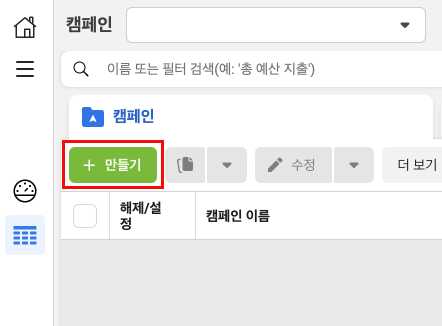
Now let's actually set up an ad. We'll start with the campaign — the top-level unit.
Click the big green '+ Create' button on the left.
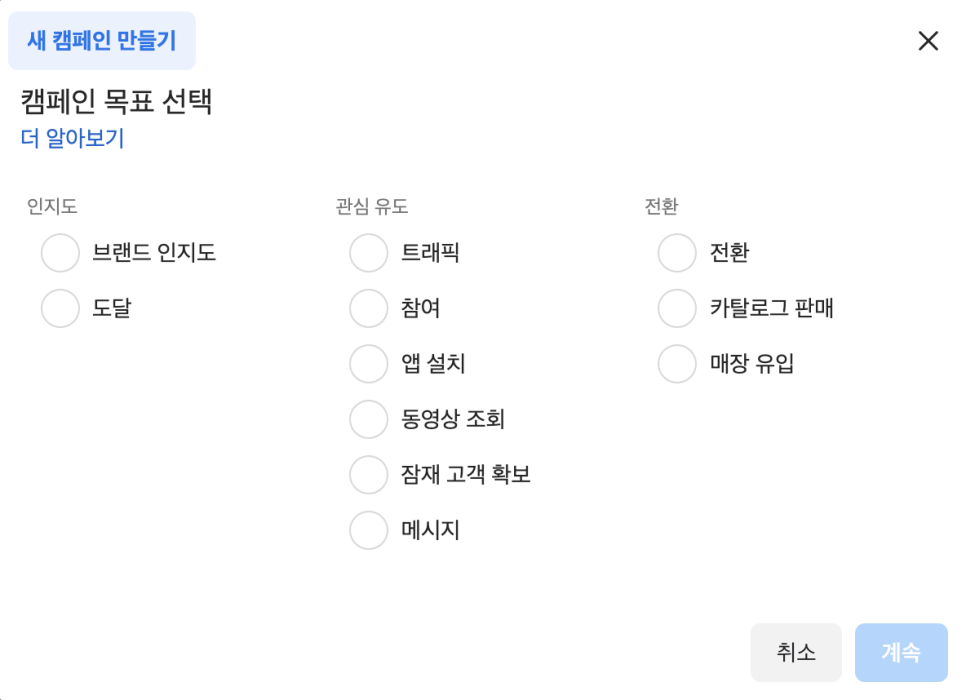
You'll see a screen asking you to choose a campaign objective. There are 11 options — kind of overwhelming at first glance.
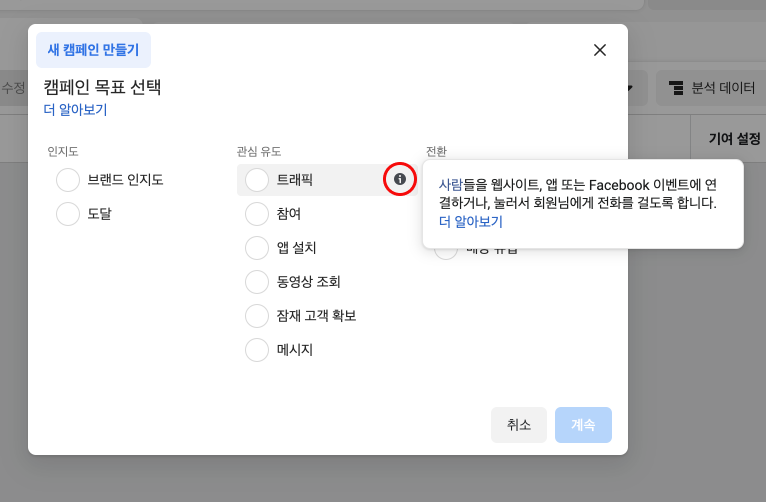
But hover over the ⓘ icon next to each objective, and you'll see a description of what it does.
The main reason pension owners run Facebook ads is probably to drive more people to their booking page.
In that case, the best objective is Traffic. Traffic campaigns are optimized to send more people to your website.
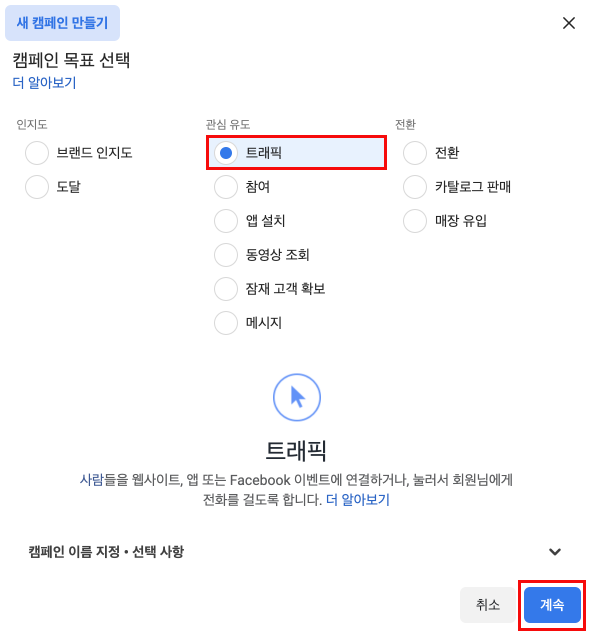
Select 'Traffic' and click 'Continue'.
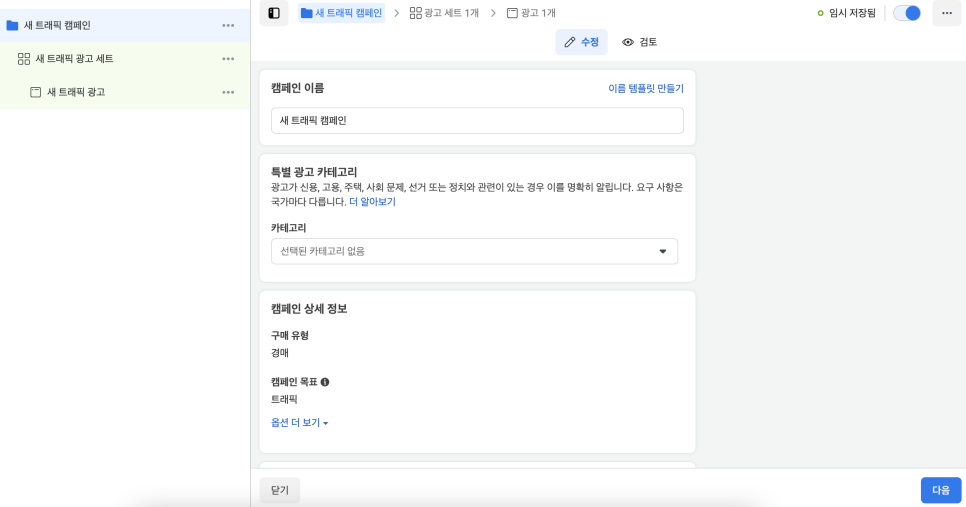
You'll now see this screen. On the left, you'll see 'New Traffic Campaign' with 'New Traffic Ad Set' and 'New Traffic Ad' nested inside.
Let's start with the campaign.
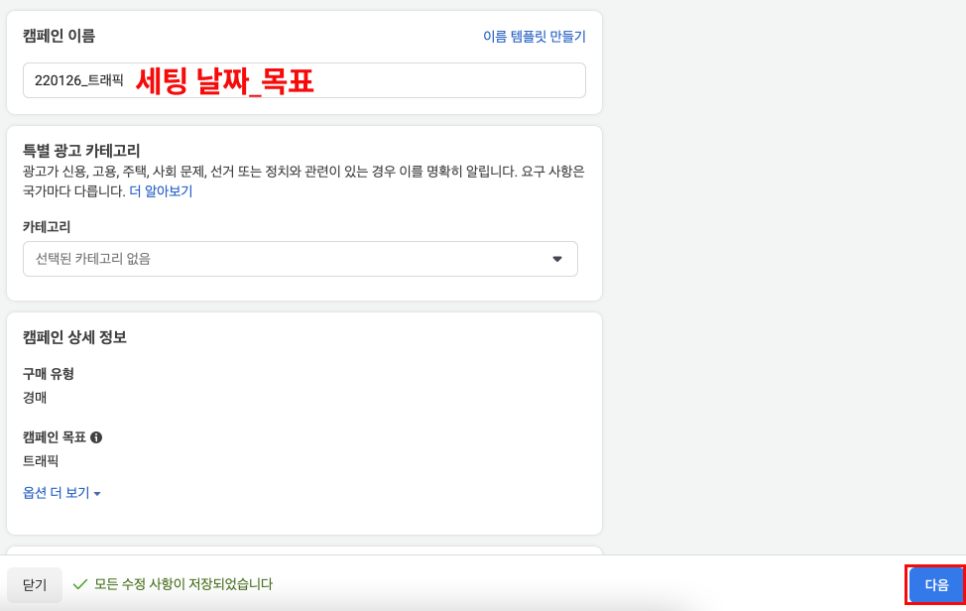
At this stage, all you need to do is name your campaign. You can name it whatever you like, but it's easier to manage if the name includes the date and objective — so you know what it is at a glance.
After naming your campaign, click 'Next'.
Facebook Ad Setup #2. Ad Set Setup
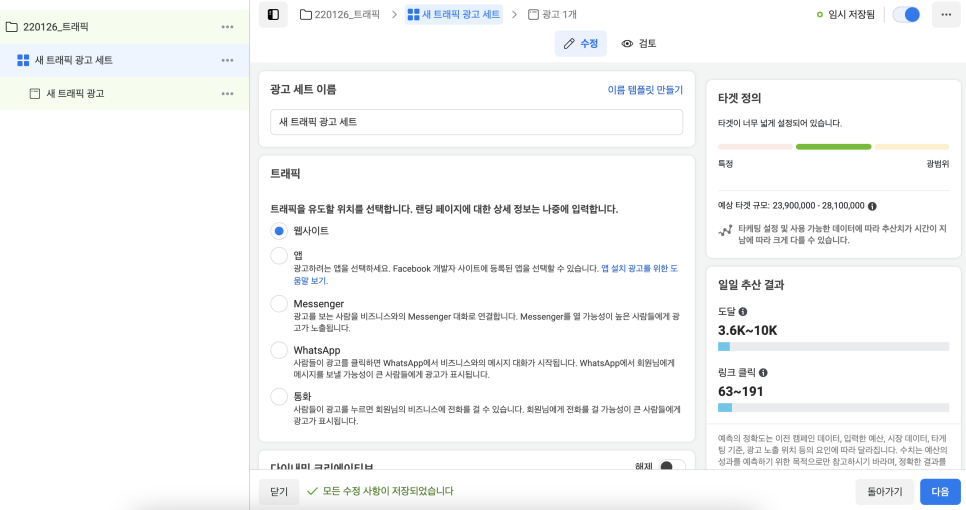
After clicking 'Next', you'll land on the ad set setup screen.
There's more to configure here, but it breaks down into three areas: 1) Budget & Schedule 2) Audience 3) Placements. Name your ad set freely, then let's start with budget and schedule.
1) Budget & Schedule
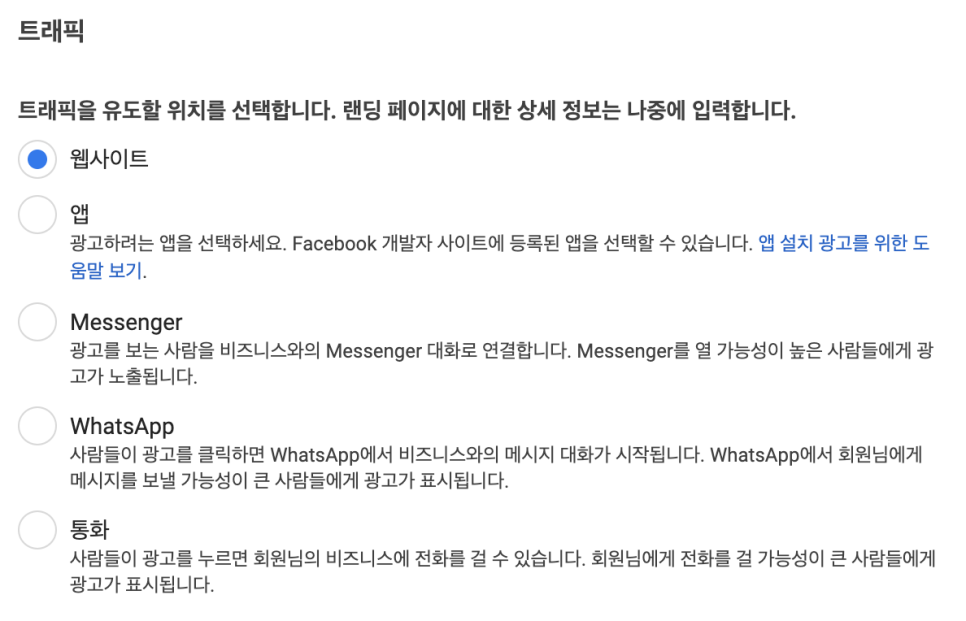
Since we're building an ad to drive people to a booking page, select Website under traffic.
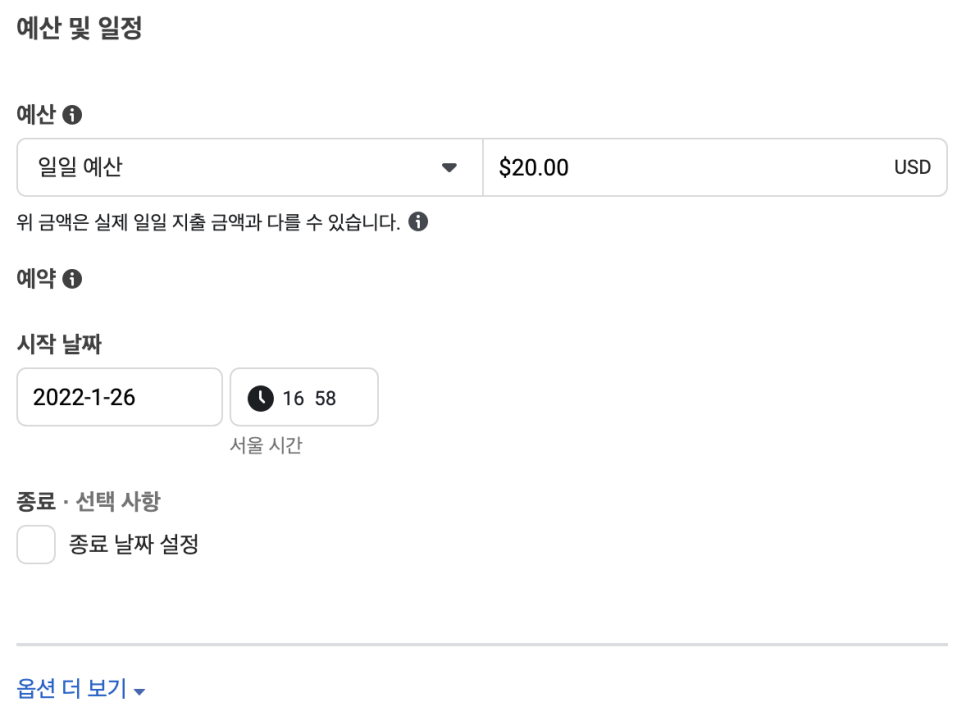
Scroll down and you'll see options for budget and schedule. You can choose between daily budget or lifetime budget. Pick whichever works for you.
2) Audience
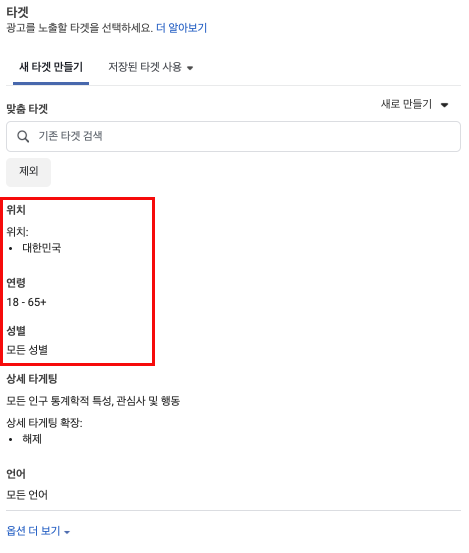
This is one of the reasons we recommended using Ads Manager — detailed audience targeting. The main things to configure here are location, age, and gender.
A) Location

Hover over 'Locations' and you'll see an 'Edit' button. Click it to configure detailed targeting.
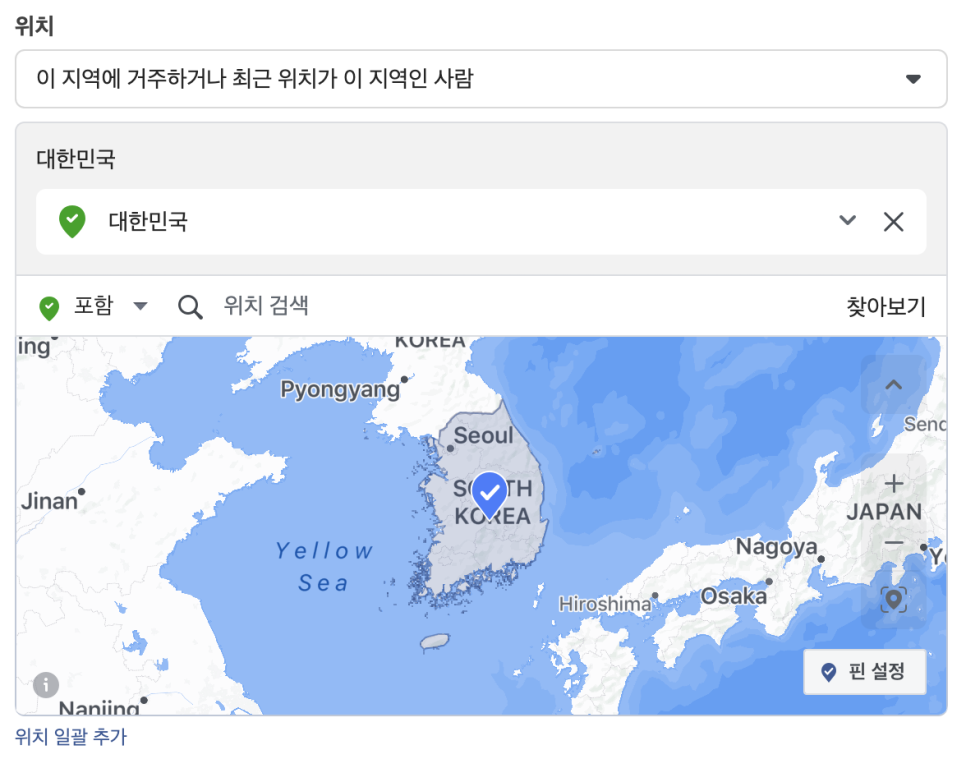
The location defaults to South Korea. You can remove it and specify cities like Seoul, Busan, or Jeju. But narrowing the location too much also shrinks your audience — meaning fewer people will see your ad.
B) Age & Gender
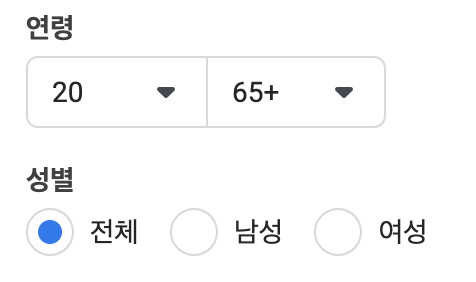
You can set age ranges and gender. Pensions attract couples, friends, families — a wide range of guests. So setting age to 20–65+ and gender to all is a solid default.
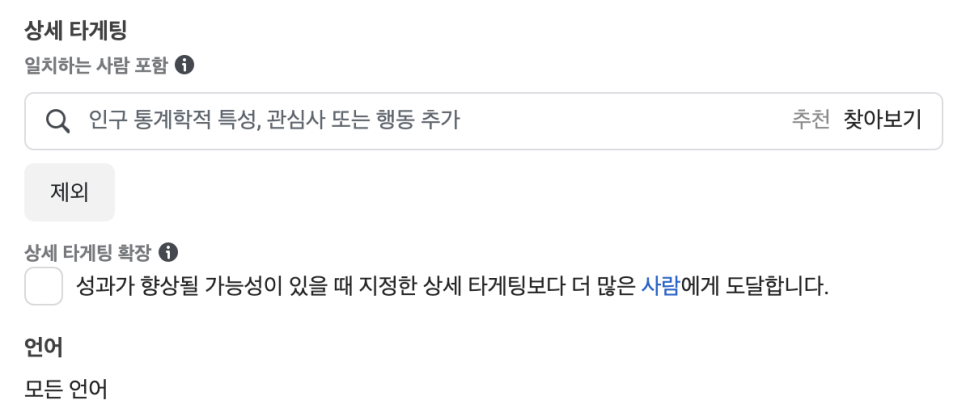
Below that, you'll see detailed targeting and language options. We recommend not using detailed targeting unless you have a specific reason — Facebook's algorithm will optimize toward performance on its own.
If you're targeting Korean speakers in South Korea, you don't need to set language either.
3) Placements
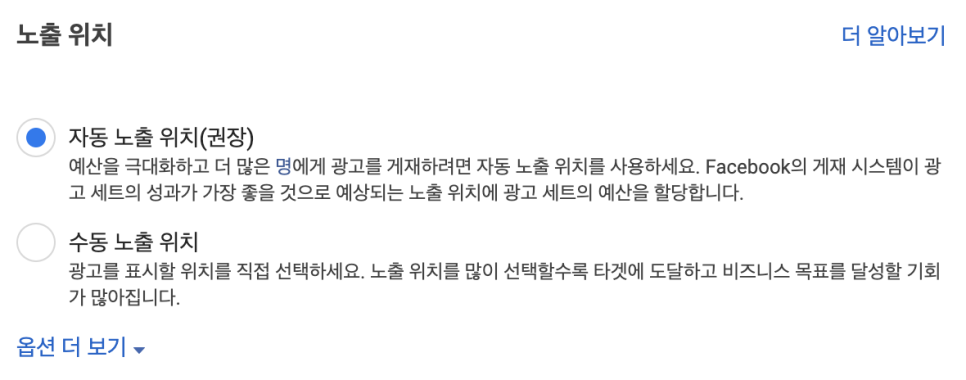
Placements have two options: Automatic or Manual. Automatic placements let Facebook's system allocate spend to the most efficient placements. Manual lets you choose where your ads appear.
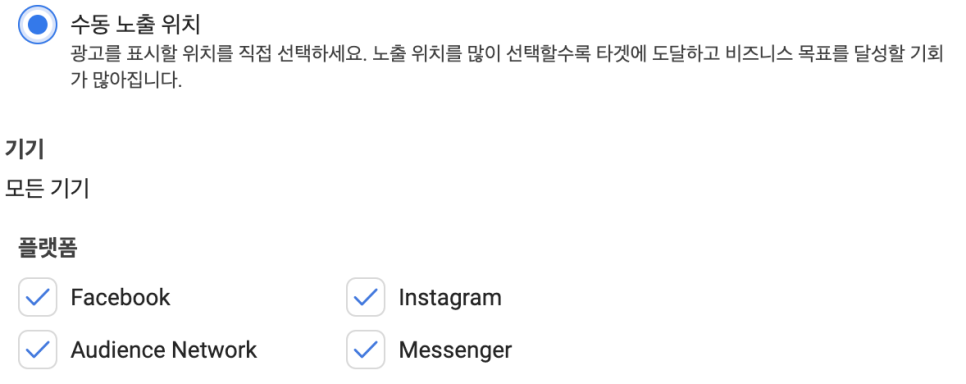
If you select manual placements, you'll see four platforms. You can run ads only on Facebook if you want. But choosing manual placements limits Facebook's ability to learn and optimize for efficiency.
We recommend sticking with 'Automatic Placements' — Facebook's recommended option.
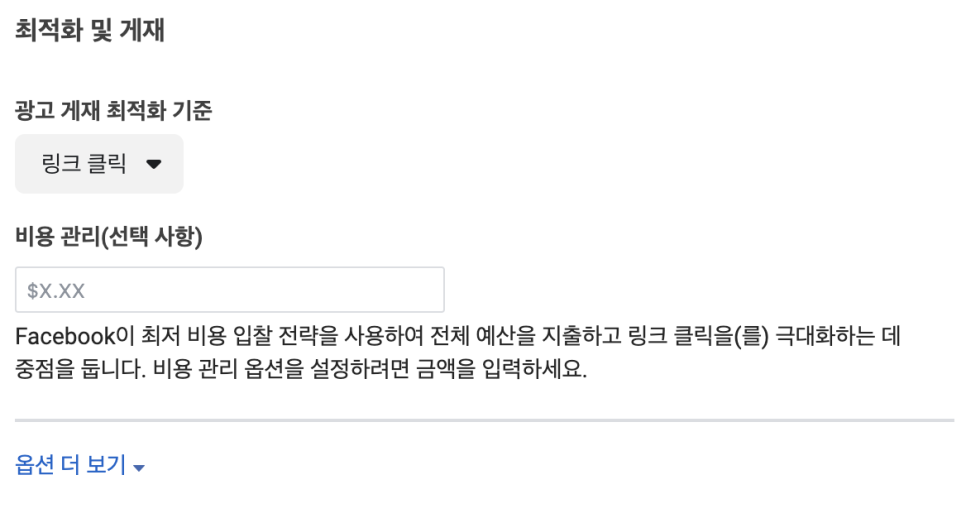
Scroll further and you'll see 'Optimization & Delivery'. Traffic campaigns typically optimize for link clicks — showing your ad to people likely to click. Leave this as is and click 'Next'.
Facebook Ad Setup #3. Ad Setup
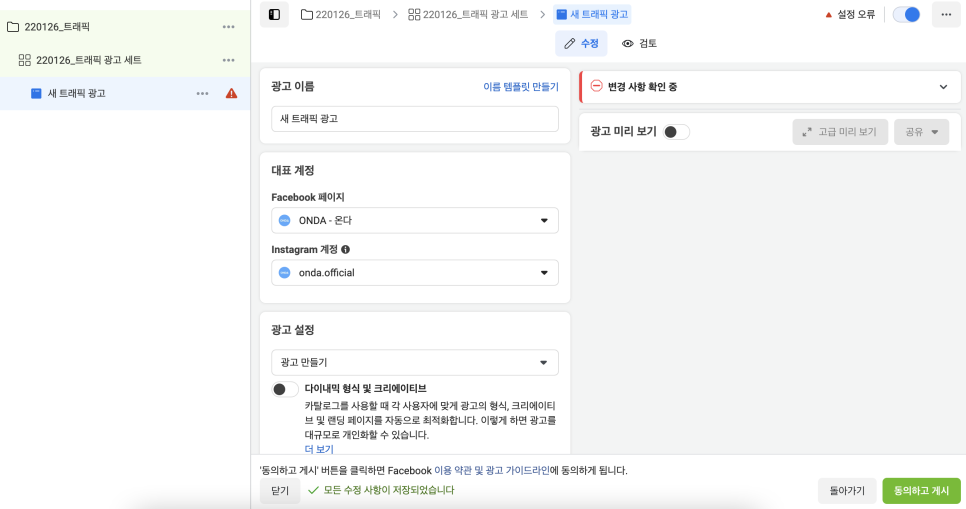
Now for the final step — setting your creative and copy. This is the most important part.
1) Ad Name & Identity
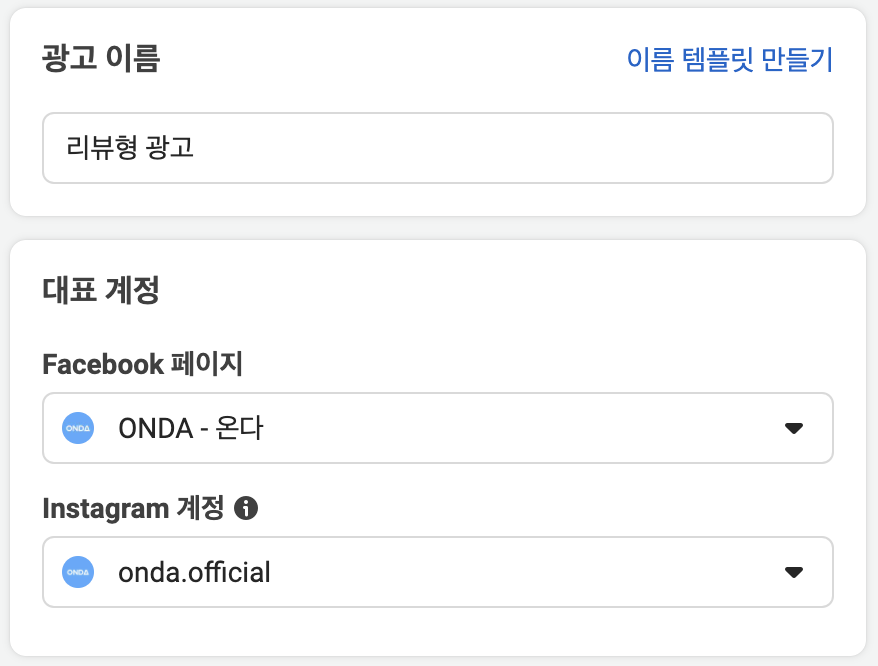
Name your ad clearly so you can tell at a glance what creative it uses. For example, if you're using a guest review image, name it 'Review Ad'.
For identity, select your pension's Facebook Page and Instagram account.
2) Ad Creative
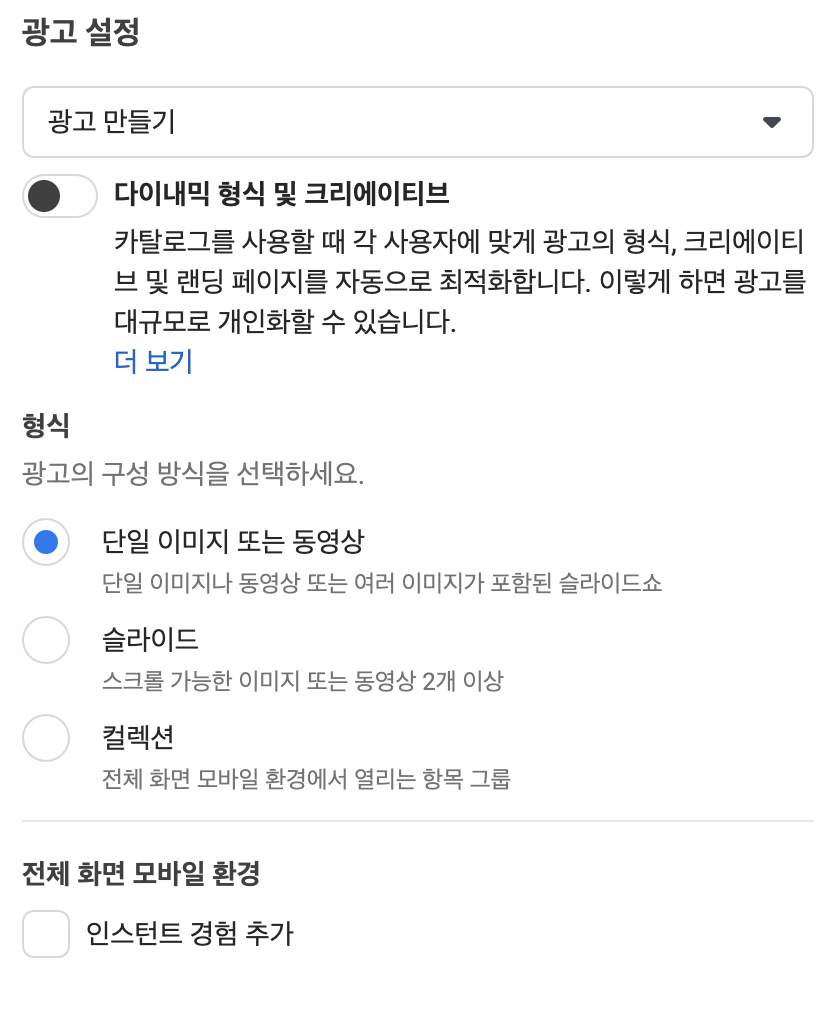
If you're using images or videos, the default setup here works fine.
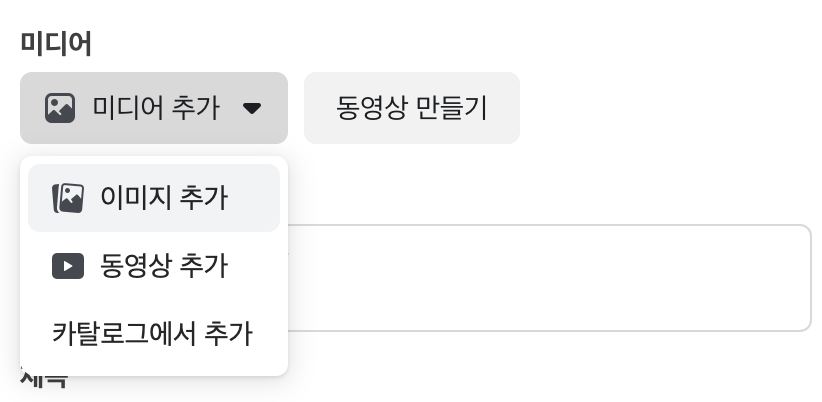
Under 'Ad Creative', click 'Add Media' to upload your image or video.
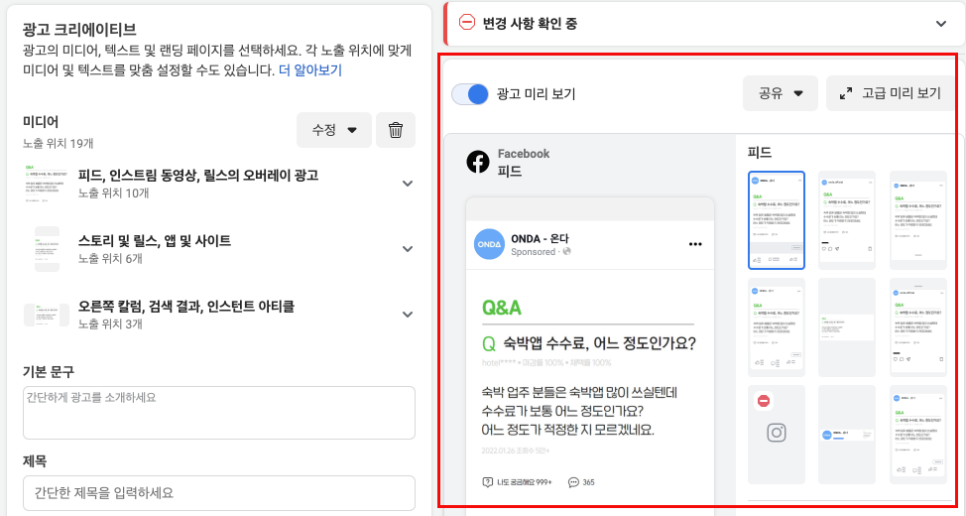
Once you upload, you'll see a preview.
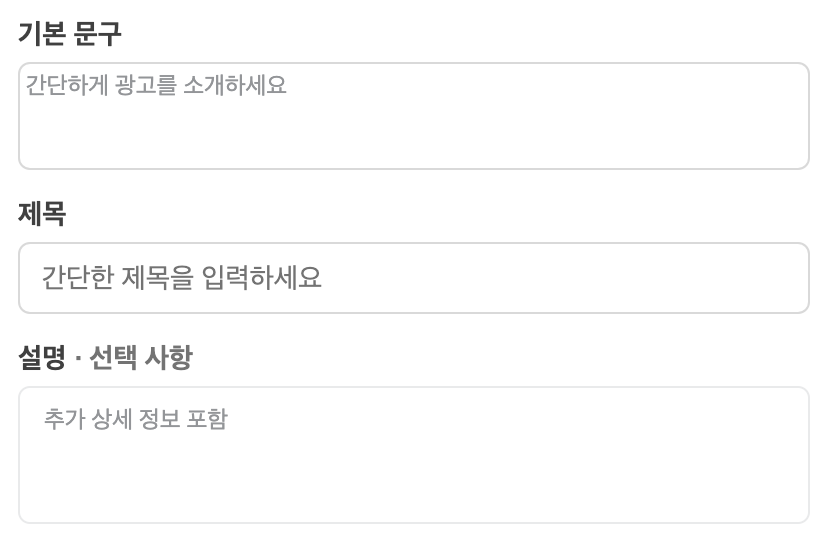
Now let's add copy. There are three text fields:
Primary Text: Appears above your creative.
Headline: Below the creative, in bold.
Description: Below the headline, in smaller text.
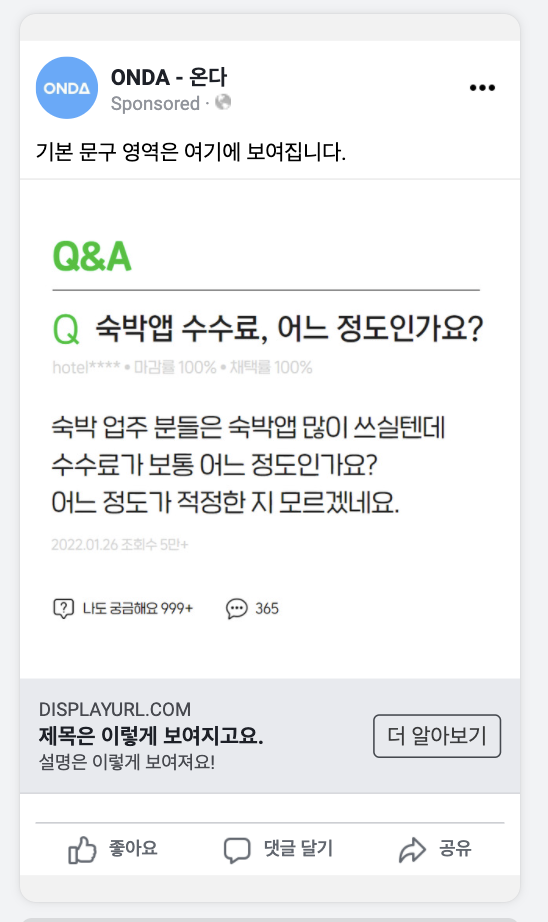
Fill out each field and you'll see it reflected in the preview. Now you know what goes where.
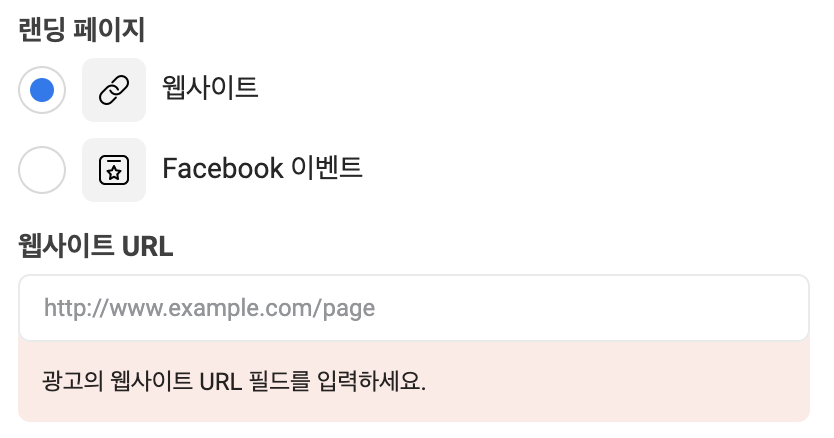
This is where you set the destination for people who click your ad. You probably want them landing on your booking page, right? Paste your booking page URL (or whichever page you prefer).
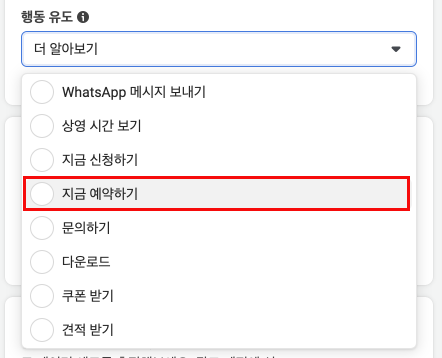
Finally, there's the call-to-action (CTA). This is a button or link that prompts viewers to take action. There are various CTA options, but 'Book Now' seems like the right fit for us.
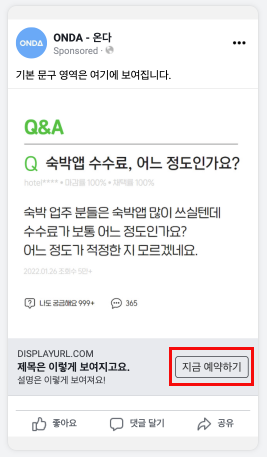
Once you set the CTA, you'll see the button appear next to your headline and description in the preview.
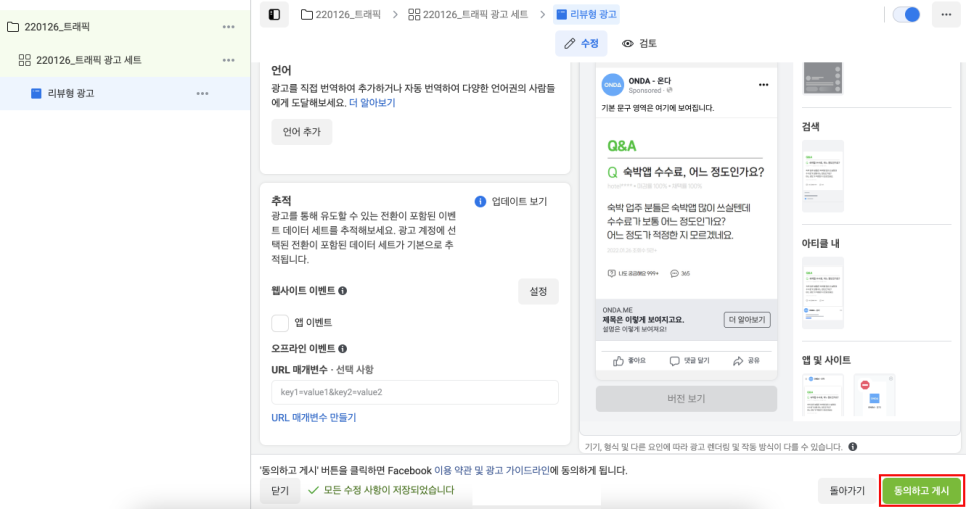
Finally, click 'Confirm and Publish' at the bottom right. Done! Facebook will review your ad in 5–20 minutes, and then your ad will go live as configured.
We covered a lot of ground — explaining concepts step-by-step might make it seem more complicated than it is. But if you follow along, you'll finish faster than you think.
Running ads through Facebook Ads Manager lets you tap into Facebook's optimization algorithm and configure campaign objectives and detailed targeting — leading to more meaningful results.
Running the ad is important, but analyzing performance is just as critical. In the next post, we'll teach you how to read and analyze Facebook ad metrics.
Until your booking rate goes up, ONDA's here with you.
⚠️ All rights reserved. Cite this piece as 'ONDA (온다)' when quoting.